Creating a Hands-Free Livestream Setup
During COVID, Zoom services became all the rage.
Let me just share, both my rabbi and I hate Zoom. Being a Conservative congregation, I think we were both glad that the teshuvah from the Rabbinical Assembly indicates that now we’re out of the pandemic, we no longer have any obligation to touch things which are muktzeh.
But how does one automate this?
Here’s what we use:
- PTZ Camera with wired Ethernet and 3.5mm Sound Input
- Wireless Audio Receiver and Transmitter
- Wireless to Wired Ethernet Access Point
- OBS Studio
- Windows Task Scheduler
- Restream
Choosing a Camera
We initially went with a camera from PTZOptics, and we more or less ran it 24/7 for five years.
It began to show its age right away. The embedded configuration software had Flash Video or video plugin dependencies that were antiquated before we bought it. Nevertheless, it could handle the fundamentals.
And this is the important part that we needed:
- Ease of setting up an IP address – this is a surprisingly complex operation that makes it difficult for small organizations. Fortunately, my father literally “wrote the book” on TCP/IP, and even though my field is software engineering, one rubs elbows with IP often in the cloud DevOps space. Most cameras will come configured with a static IP already assigned. Most small potatoes networks use IP addresses in the 192.168.1.x range. You have to be able to put the camera on your network and either configure this or use it.
- Protocol capabilities. Video over IP is what we’re talking about, and there are a couple of possible protocols with video over LAN that we need to know. We need a protocol that sustains low-latency, real-time broadcasting.
- RTMP – developed by what became Adobe for Flash video, it’s become a very popular standard for video streaming. It works across TCP/IP and is a solid choice for your stream, if your camera supports it. Be mindful that security (RTMPS) is optional and will require additional legwork. Can be setup as a video source in OBS.
- RTSP – this is an open standard that works fairly well, widely supported. Works across UDP and TCP. Not as great for live streams, but it’s what we use with OBS.
- WebRTC is great, but good luck finding a PTZ Camera that supports it. It’s super low-latency, primarily works across UDP with TCP as a fallback. It’s inherently secure, too.
- Configurable presets for camera position – this may seem like a “duh” sort of component, but unless you’re mounting it, which I recommend, cameras get jostled. Power failures happen, too. There are all sorts of reasons you need to be able to programmatically invoke your camera’s position presets. The hard part is figuring out how to do it, which we’ll get into, outside of a browser.
Our most recent camera acqusition at Congregation Beth Israel in Bangor is some no-name brand from overseas with all the bells and whistles, plus some AI-based movement tracking, which we don’t use. One of my complaints is that it’s preconfigured IP address was set to 192.168.5.x, which is problematic trying to get to on a different subnet. Camera vendors, take note: please stick to common ranges!
Wireless Audio
One of our challenges in our building, which dates to 1913, is wiring. We have a pretty decent, relatively turn-key audio system that lives within our aron as its hub. Our camera is on the directional opposite side of the sanctuary, posing a cabling nightmare.
What to do? We had wireless transmitters and retrievers, but they unfortunately used UHF frequencies no longer available for public use. There was a setting on it that took it out of the “bad” range, but they were showing their age. I acquired a newer Klark Teknik receiver / transmitter pair that works very well.
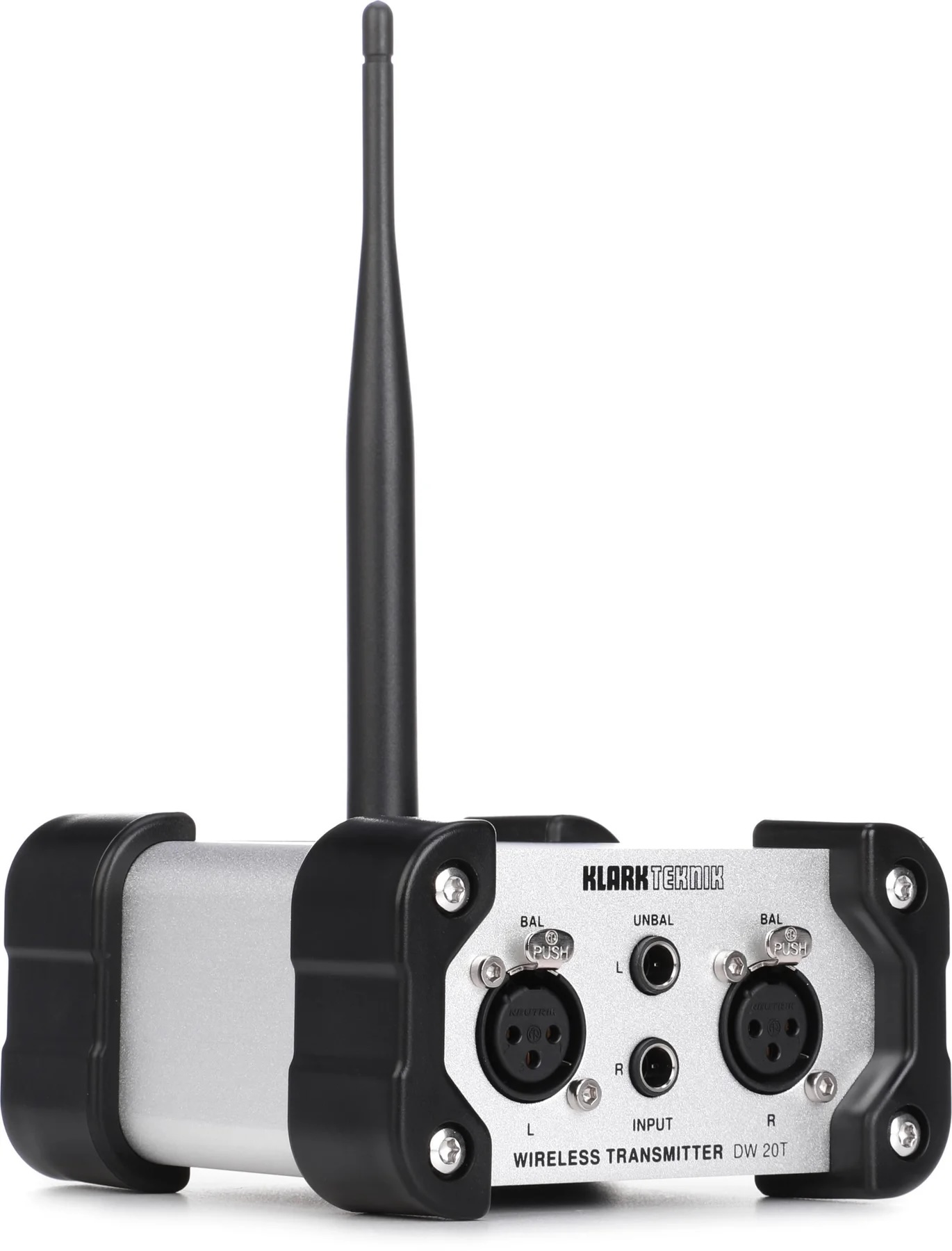
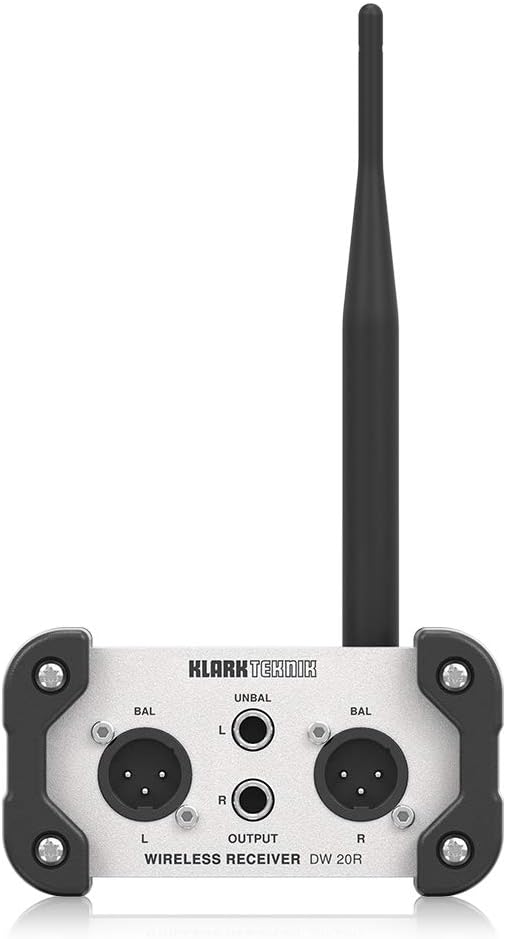
With an XLR to 3.5mm patch cable, we were in business on audio.
LAN Connectivity
Our sanctuary dates to when our building was reconstructed on York Street in Bangor after the 1911 fire. Electricity is a problem, as is LAN connectivity. Our WiFi from the newer addition to our building does not reach, or its signal is inhibited by the brick walls.
Recently, we had wired Ethernet run into our aron with a wireless access point, but I still had the same problem. The camera is at the back of the room! I ran a cable around the perimter of our balcony, out the fire escape, and down to the office window, and connected to the router.
It’s Maine, so we have some wide variety of temperatures, and guess what? Ethernet cables, unless you get one designed for it, will experience signal degradation in temperature extremes.
I finally recently acquired a wireless access point that offers an Ethernet drop, and this improved our circumstances tremendously.
OBS Studio
This part is staggeringly simple, in spite of what you might think.
There are a couple of headaches with this, for what it is worth. If you want to invoke OBS from a batch file on a schedule, you should know that they removed the ability to override a safe shutdown check from the command line. There is a trick to this, which we’ll get into with the Windows Task Scheduler.
It’s really easy to connect a LAN camera to OBS. Click the plus sign under “Sources” after you install and open OBS.
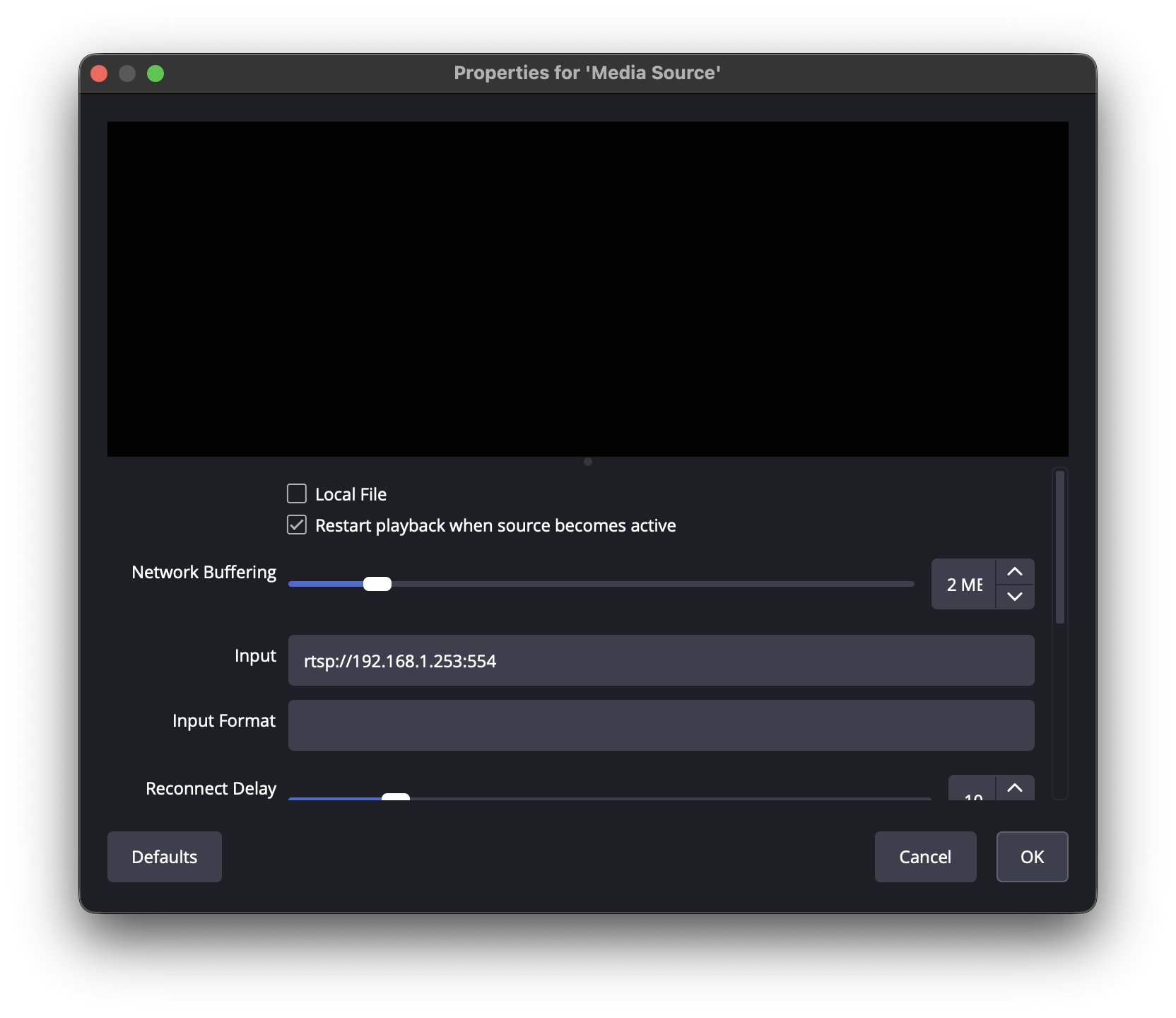
You uncheck “local file,” and in the input field, place either your RTSP or RTMP. Most out of the box settings will work just fine. This will bring in audio and video from your camera.
You can add a watermark as a source as well.
There are better tutorials on OBS, I won’t be redundant against those.
Windows Task Scheduler
With the Rabbinical Assembly’s 2020 teshuvah on live streaming in mind, we really try to make our system turnkey for Shabbos and yontiff. It doesn’t stop folks from contacting us on Shabbos and yontiff when something is amis with the stream. This is a habit I’ve desperately tried to break; it’s one of the fundamental reasons why on many levels, I am opposed to this. Even if you find a way to do it without treading on areas where we ask or tempt others to violate Shabbos, the lack of sensitivity to this on the part of an uneducated or ignorant laity is itself a problem posed by a live stream.
So enter Windows Task Scheduler, a very valuable tool that has been around for a very long time. I configure ours to run a batch file at interval, and then after an appropriate amount of time, run a script that kills the application.
The batch file contains a couple of different things.
- Delete the OBS file that is usually deleted on a proper exit. This will enable you to run OBS in a quasi-headless state without fear of the disruptive prompt on next execution when you did not.
- Run the script that executes a camera’s expected position setting.
This requires a little bit of leg work. One, you need an application named CURL installed on your Windows machine. Instructions here. Some documentation will cover what it looks like, but many PTZ cameras will have an invokable web address you can use to hit that preset. You may need some help here…with specific questions, I can try and help if you email me. - Run OBS and start streaming.
Restream
While we could somehow broadcast individually to YouTube and Facebook, as we do, I find it easier to use a service like Restream to do it. It provides a single point for us to configure in OBS for our live stream. It’s very turnkey.
You do have to do the legwork with a Facebook page or YouTube to set this up, but Restream can walk you through all of it.
And that’s it…those are the components of our system. There’s some monthly costs, like Restream, and some equipment costs, but you can livestream for under $2000 in costs if you do it right.